
Expert Advisors in MetaTrader 5: How to Install, Test and Run an EA
A MetaTrader expert advisor (EA) is a program attached to a MetaTrader 5 chart that can analyse prices and place or manage trades by fixed rules. You install it in the MQL5/Experts folder, attach it to a chart and switch on Algo Trading. The EA applies its rules exactly, so you judge it by its rules, its inputs, its risk per trade and your own test.
Module 14 · Lesson 1 of 5
What you'll learn
- What an Expert Advisor is, and how EA trading works in MetaTrader 5.
- How to install and run an EA in six steps, including the Algo Trading button.
- Free versus paid EAs, and what to check in each.
- Where EAs come from and what they cannot do.
- How an EA's lot size turns into risk per trade.
- How to evaluate an EA before it trades: rules, inputs, equity drawdown and your own test.
New to the platform? Start with how to use MetaTrader 5.
What is EA trading?
EA trading means letting an Expert Advisor (EA), a program running in MetaTrader 5, analyse prices and open, manage or close trades by rules written in advance. The rules come from whoever wrote or sold the EA. The EA applies them the same way every time, without judgement.
MetaQuotes, which makes MetaTrader 5, describes Expert Advisors as mechanical trading systems that can automate analytical and trading activity. For the wider idea, see what automated trading is. This lesson opens the Trading Automation module.
Definitions
- Expert Advisor (EA): a program written in MQL5, MetaTrader 5's built-in language, that runs on a chart and can trade.
- Input parameters: an EA's settings, such as lot size or stop distance.
- Forex robot: another common name for an EA, used especially for ones sold online.
Is an Expert Advisor a trading bot?
Yes. An Expert Advisor is MetaTrader 5's name for a trading bot: a program that reads prices and opens, manages and closes trades by fixed rules without you clicking. Forex robot and algo are other names for the same thing. What it does depends entirely on the rules written into it.
The difference from many crypto bots is where it runs. A crypto bot often runs on an exchange's or a service's servers and connects through an API key; an EA runs inside your own MetaTrader 5 terminal, on your computer or a VPS, and trades the account that terminal is logged in to.
How do you install and run an EA in MT5?
To install and run an EA in MT5, copy its file into the MQL5/Experts folder, refresh the Navigator, drag the EA onto a chart, tick Allow Algo Trading and set its inputs, switch on the Algo Trading button in the toolbar, then check that the EA's icon in the chart corner is active.
An EA trades only when automated trading is allowed both for that EA and for the whole platform. The steps, from MetaQuotes' help page on Expert Advisors:
- Copy the file. In MetaTrader 5, click File, then Open Data Folder, and open MQL5, then Experts. Paste the EA's .ex5 file (or .mq5 source) there; MetaQuotes says all Expert Advisors are stored in this folder. An EA bought or downloaded from the Market tab inside MT5 installs itself.
- Refresh the Navigator. Press Ctrl+N if the Navigator is hidden, right-click Expert Advisors and choose Refresh, or restart the platform. The EA appears in the list.
- Attach it to a chart. Open a chart of the symbol and timeframe the EA is built for, then double-click the EA in Navigator or drag it onto the chart. Only one EA runs per chart; starting another on the same chart removes the first.
- Allow it to trade and set the inputs. In the window that opens, tick Allow Algo Trading on the Common tab (Allow Auto Trading in the help pages and older builds). On the Inputs tab, read and set every input, above all the lot size and stop distance. Leave Allow DLL imports off unless you trust the program and know why it needs an external library. Click OK.
- Switch on Algo Trading. Click the Algo Trading button on the toolbar (AutoTrading in older builds), or tick the matching option under Tools, Options, Expert Advisors. If it is off, no EA on the platform can trade. Before you do this on a live account, test the EA in the MT5 Strategy Tester and on demo.
- Check it is running. The EA's name and icon appear in the chart's top-right corner. If the icon shows as disabled, trading is not allowed for that EA or for the platform, so recheck steps 4 and 5. The Experts tab of the Toolbox logs the EA's messages and trades.
The EA runs inside your MetaTrader 5 terminal, so it stops when you close the platform: closing it is one of the ways MetaQuotes lists for shutting down an EA. Running a terminal around the clock is covered in the forex VPS hosting lesson.
Where do Expert Advisors come from?
Expert Advisors come from four places: the MQL5 Market store, the free Code Base, developers hired through the Freelance service, or code you write yourself in MQL5. All four are listed in MetaQuotes' help on where to find trading robots. Whichever source you use, you evaluate the EA the same way: by its rules.
| Source | What you get | What you still check |
|---|---|---|
| MQL5 Market | Paid or rented EAs | Rules, inputs and performance claims |
| Code Base | Free EAs as source code | That the code matches its description |
| Freelance | An EA built to your specification | That your specification was sound |
| Your own code | Full control of every rule | Coding errors and untested rules |
If you cannot state an EA's rules in plain words, apply the trading rules lesson test: a rule you cannot check is not a rule.
Should you use a free or a paid EA?
Free and paid EAs are judged the same way, by their rules, inputs and your own test. Free EAs from the MQL5 Code Base usually come as source code you can read and change; paid EAs from the MQL5 Market come compiled, with a seller description, a demo version to test and updates from the developer.
| Type | What you get | Pros | What to check | Suits |
|---|---|---|---|---|
| Free (Code Base, or the examples bundled with MT5) | Source code you compile in MetaEditor | No cost; you can read every rule and change it | That the code does what its description says; that it still compiles on your build | Learning how EAs work, or adapting a simple rule set |
| Paid or rented (MQL5 Market) | A compiled EA, a free demo version, updates | Ready to run; support and updates from the seller | Run the demo in the Strategy Tester on your symbol, with your costs and dates the seller did not choose | Traders who want a ready-made system they can test first |
| Custom (Freelance) | An EA built to your specification | Your exact rules, automated | That your rules were tested by hand before you pay to automate them | Traders with a manual strategy that already has clear rules |
Price says nothing about results on its own. A seller's screenshots show the dates and settings the seller chose; your own test on other dates, with your account's spread and commission, is the figure to trust. The checklist below applies to every type.
If you would rather follow a signal provider’s trades than run a robot yourself, copy trading covers how MT5 Signals subscriptions work and what to check before you subscribe.
What can an EA do, and what can it not do?
An EA can apply the same rules every time, at any hour its terminal runs, but it cannot rewrite those rules when conditions change or see why the market is moving. It does exactly what its code says, even when conditions change: rules built for calm markets keep firing when volatility jumps after news.
| An EA can | An EA cannot |
|---|---|
| Apply the same rules every time | Notice that its rules no longer suit the market |
| Act at any hour while the terminal runs | Act while the terminal is closed or offline |
| Size trades by a fixed rule | Choose a size that fits your account by itself |
| Be tested on past prices in the Strategy Tester | Trade while Algo Trading is off |
That is why you set the inputs, above all lot size and stop distance, to fit your account, and retest the rules when the market changes character.
How do you calculate the risk an EA takes per trade?
An EA's risk per trade is its lot size × the pip value per lot × its stop distance in pips; divide by your balance to get the percentage. A fixed lot size is a fixed money risk, whatever your balance does, so a run of losses takes a growing share of a shrinking account.
Worked example: an EA trades EURUSD with a fixed 0.50 lot and a 40-pip stop on a $5,000 account. One lot of EURUSD is about $10 per pip.
- Risk per trade: 0.50 × $10 × 40 = $200, or 4% of $5,000.
- Sized for about 1% with the position sizing formula: ($5,000 × 1%) ÷ (40 × $10) = 0.125, rounded down to 0.12 lot.
- Recompute: 0.12 × $10 × 40 = $48, or 0.96%.
| Losses in a row | Fixed 0.50 lot | 0.12 lot |
|---|---|---|
| 1 | $200 (4%) | $48 (0.96%) |
| 3 | $600 (12%) | $144 (2.88%) |
Costs come on top. Check your own figures with the position size calculator.
How do you evaluate an EA before using it?
You evaluate an EA by checking four things: what its rules are, what its inputs do, how much it risks per trade, and how it performs in a Strategy Tester run and a demo test that you do yourself. Each answer comes from its description, its Inputs tab and your own test report.
| What to check | Where to find it | What a clear answer looks like |
|---|---|---|
| Rules | Description, source code or developer | When it opens, closes and adds to positions, in plain words |
| Inputs | The Inputs tab when you attach it | Lot size or risk setting, stop distance, maximum open trades |
| Risk per trade | Lots × pip value per lot × stop pips | A share of your balance you chose, as in the example above |
| Equity drawdown | The Strategy Tester report | The deepest fall including open trades, not only closed ones |
| Your own test | Strategy Tester, then a demo account | Results on data the settings were not tuned on, after costs |
An EA with a full report shows both its balance and its equity, and the gap between the two tells you how it handles losing trades.
Why check equity, not only balance?
Balance only changes when a trade closes, so an EA that holds losing positions open can show a smooth, rising balance while its equity is falling. One way to produce such a curve is martingale: increasing the size after each loss to win it back.
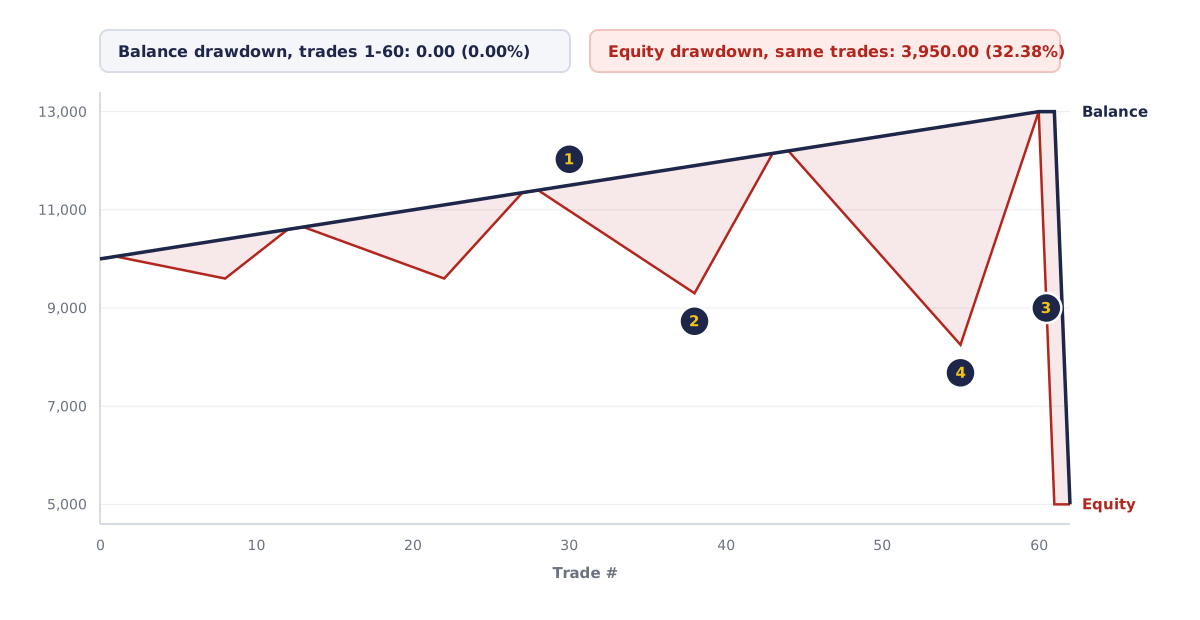
- Small closed wins lift balance from 10,000 to 13,000 over 60 trades, with zero balance drawdown.
- Equity keeps dipping as losses are held open: an equity drawdown of 3,950 (32.38%).
- On trade 61 the held loss closes, and balance falls to 5,000.
- At its worst, the open loss exceeded all 60 closed wins combined.
How do you take an EA from test to live trading?
You take an EA from test to live in stages: write down its rules, set its inputs and risk per trade, test it in the Strategy Tester, run it on a demo account, then go live at the size you calculated. Each stage uses the same inputs, so every result you compare comes from the same settings.
- Rules: write down when it opens, closes and adds to positions.
- Size: set the lot size from your risk per trade, as above.
- Equity: note the maximum equity drawdown, not only balance.
- Backtest: run it in the MT5 Strategy Tester, including a period the settings were not tuned on.
- Demo, then live: run it on a demo account with live prices, then switch to live with the same inputs.
What can go wrong with an EA, and how do you prevent it?
The common EA problems are wrong inputs, rules that no longer fit the market and a terminal that stops running, and each has a direct fix. Read every input before you click OK, retest the rules on recent data when conditions change, and keep the platform running, on a VPS if needed.
- Inputs: a lot size typed as 5.0 instead of 0.5 multiplies the risk tenfold, and an EA can open many trades quickly, so check the Inputs tab every time you attach it.
- Market change: rules fitted to past data can stop working in a new market; rerun the Strategy Tester on the latest months.
- Technical stops: a closed terminal or lost connection stops the EA, possibly with trades open; the forex VPS lesson shows how to keep it running.
Try it on demo
On a demo account in MetaTrader 5, drag one of the bundled example EAs from Navigator onto a chart. Read every input and work out its risk per trade. Then attach a second EA to the same chart and watch the first one disappear.
Quick check
- An Expert Advisor in MetaTrader 5 is
- How many Expert Advisors can run on one MT5 chart at a time?
- An EA trades 0.50 lot with a 40-pip stop on EURUSD at $10 per pip per lot. One stopped-out trade costs
- An EA report shows a smooth balance curve but no equity curve. What is missing?
- An EA has Allow Algo Trading ticked on its Common tab, but the Algo Trading button on the toolbar is off. The EA
Frequently asked questions
Do forex robots work?
A forex robot works in the sense that it applies its rules exactly, every time. Whether those rules suit your account shows up in your own Strategy Tester run, a demo test and its risk per trade, so judge each robot on that evidence.
Can an EA guarantee results?
No. An EA applies its rules exactly, but no set of rules can guarantee results, because markets do not repeat past prices exactly. Judge an EA by the checklist in this lesson: its rules, inputs, risk per trade, equity drawdown, and your own Strategy Tester and demo results.
Can I use an EA without knowing how to code?
Yes. You can run an EA from the Market or Code Base without coding, but you still need to understand its rules and inputs.
Does an EA keep trading when my computer is off?
No. An EA runs inside your MetaTrader 5 terminal, so it stops when the platform closes. A virtual private server (VPS) can keep it running.
Can I run more than one EA at once?
Yes, on separate charts. Only one EA runs per chart, so MetaQuotes says to launch extra copies, even of the same EA with different settings, on different charts. Add up the risk of all their open trades.
Sources
- MetaQuotes, MetaTrader 5 Help: Expert Advisors and Custom Indicators, accessed 19 October 2026: starting an EA by double-clicking or dragging it from Navigator, the EA name and icon in the chart's top-right corner, only one EA per chart, running copies with different parameters on different charts, the Allow Auto Trading option (Allow Algo Trading in current builds), the AutoTrading toolbar button (Algo Trading in current builds) and Options, Expert Advisors tab, input parameters and the Allow DLL imports option. https://www.metatrader5.com/en/terminal/help/algotrading/trade_robots_indicators
- MetaQuotes, MetaTrader 5 Help: How to Create an Expert Advisor or an Indicator, accessed 19 October 2026: Expert Advisors as mechanical trading systems, stored in the MQL5/Experts folder; turning off the platform is one way an EA is shut down. https://www.metatrader5.com/en/terminal/help/algotrading/autotrading
- MetaQuotes, MetaTrader 5 Help: Where to Find Trading Robots and Indicators, accessed 19 October 2026: the Market, Code Base, Freelance and MQL5 as sources of EAs. https://www.metatrader5.com/en/terminal/help/algotrading/algotrading_get_ea_indicator
Practise what you learned
Open an account to use MetaTrader 5. Start on a demo account before risking real money.
Open Account