
How to Use MetaTrader 5 (MT5): A Step-by-Step Tutorial for Beginners
Module 3
Lessons in this module
- 1Install and log in to MT59 min
To install MetaTrader 5, download it from the official MetaQuotes site or an app store, run the installer, then log in with your login, password and server name. The web terminal needs no install, and a demo account lets you practise with virtual money first.
- 2MT5 platform tour9 min
MetaTrader 5 surrounds the chart with four windows, where Market Watch lists prices, Navigator holds accounts and tools, the Toolbox shows trades and the Data Window shows exact values. Ctrl+M, Ctrl+N, Ctrl+T and Ctrl+D show or hide each one.
- 3Netting vs hedging10 min
In MT5, netting merges trades on one symbol into one position, while hedging keeps each trade as its own position, so a buy and a sell can stay open. Your broker sets the mode for the whole account, so check it before you place a second trade.
- 4Place your first MT5 trade9 min
To place a trade on MT5, press F9 (or tap New Order on mobile), pick the symbol and volume, set optional stops, then click Buy or Sell. The position then appears in the Toolbox Trade tab, where you watch its profit or loss, close it, and later find it in History.
- 5Forex order types10 min
A buy limit sits below the current price and buys if the price falls to it; a buy stop sits above and buys if the price rises to it. Limit orders fill at your price or better, while stop orders become market orders that can fill at a worse price.
- 6Stop loss and take profit10 min
A stop loss is a price level you set in advance so the platform closes your trade automatically if the price moves against you, limiting the loss. A take profit does the same at a target. In a fast or gapping market, a standard stop loss fills at the next available price, which can be past your level.
- 7Forex demo account9 min
A forex demo account is a practice account that trades live market prices with virtual money. You open one free in MetaTrader 5 in a few minutes, on your phone or computer, practise your plan with a realistic balance, and move to a live account once you can follow it trade after trade.
About this module
This tutorial shows you how to use MetaTrader 5, from installing the platform to placing, managing and closing a trade on a demo account, which uses virtual money. MetaTrader 5 (MT5) is a trading platform made by MetaQuotes and offered by many brokers on desktop, web and mobile. It shows prices, charts, orders and your account.
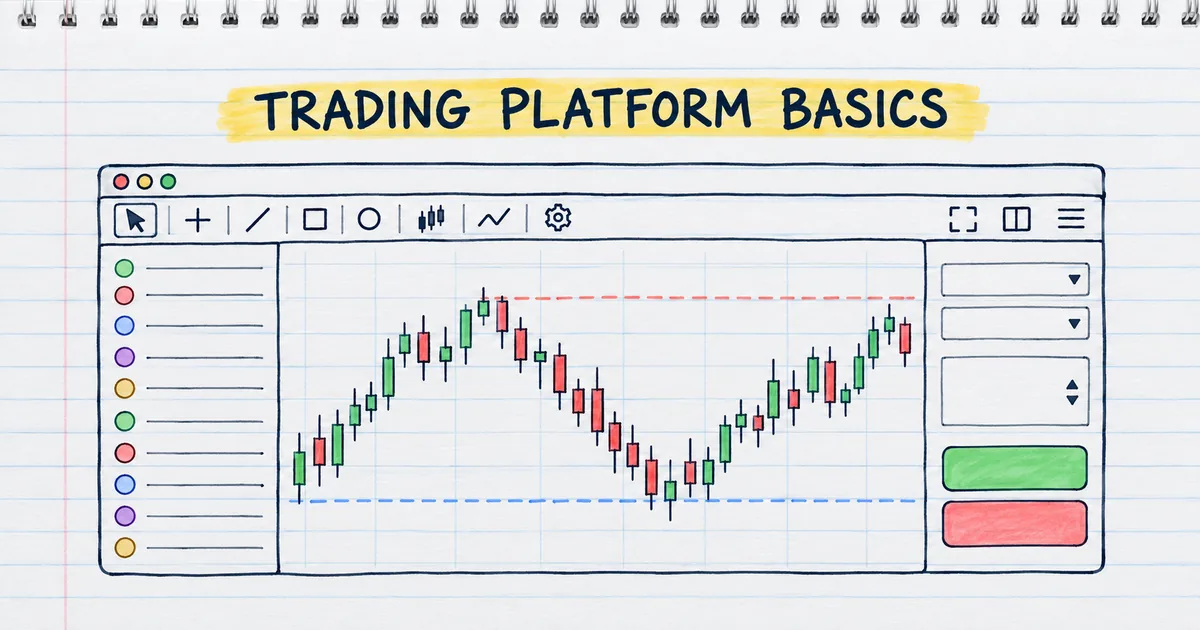
How do you use MetaTrader 5?
You use MetaTrader 5 in seven steps. Install the app or open the web platform, log in or open a demo account, and find your symbol in Market Watch. Open its chart and pick a timeframe, press F9 to open New Order and set volume and stops, click Buy or Sell, then manage and close the position in the Toolbox.
MetaTrader 5 in 7 steps
- Install MetaTrader 5 or open the web platform. Use the desktop or mobile app, or the MetaTrader 5 web platform, which runs in a browser on Windows, macOS or Linux with no software to install (MetaTrader 5 web platform). Lesson: how to install MetaTrader 5 and log in.
- Log in or open a demo account. Enter your login (the account number), password and server (MetaTrader 5 Help, Connect to an Account), or start on a demo account with virtual money. Lesson: practise on a forex demo account.
- Find your symbol in Market Watch. Press Ctrl+M to open or close the Market Watch window, which shows the prices of each instrument. Lesson: take the MT5 platform tour of Market Watch, the Navigator, charts and the Toolbox.
- Open a chart and choose a timeframe. Right-click the symbol in Market Watch and choose Chart Window, then switch timeframes on the Timeframes toolbar. Every chart can show 21 timeframes, from one minute (M1) to one month (MN1) (MetaTrader 5 Help, View and Configure Charts). Lesson: save a chart template and use profiles.
- Open New Order and set the trade. Press F9, double-click the symbol in Market Watch, or right-click it and choose New Order (Market Watch help). Enter the volume in lots, then a Stop Loss and a Take Profit; a level left at zero is not set (MetaTrader 5 Help, Executing Trades). Lesson: set a stop loss and take profit, and size the trade with lots, pips and pip value.
- Click Buy or Sell. Click Buy to send a buy order or Sell to send a sell order (same source). Lesson: place your first trade on a demo account.
- Manage and close the position in the Toolbox. Press Ctrl+T to open the Toolbox. On its Trade tab, double-click a position or choose Close Position in its context menu to close it, or enter a smaller volume to close part of it. The History tab then lists the trade (same source). Lesson: use a trailing stop and a partial close.
Before your second trade, check whether your account uses netting or hedging, because it changes what a second trade on the same symbol does. Then learn market and pending orders, such as a buy limit, and how to place pending orders in MT5. Before each trade, the pip value calculator shows what one pip is worth and the margin calculator shows the margin it needs.
How do you buy and sell on MetaTrader 5?
To buy or sell on MetaTrader 5 desktop, press F9 or double-click the symbol in Market Watch, enter the volume in lots, add an optional stop loss and take profit, then click Buy or Sell. In the Android app, tap the symbol in Quotes and choose New order, set the same fields, and tap Buy or Sell.
On some accounts the buttons read Buy by market and Sell by market (Android Help, Opening and Closing Positions). For every screen in order, place your first buy or sell trade on MT5.
How do you use MetaTrader 5 on your phone?
The MT5 mobile app follows the same steps as desktop with a touch layout. Install it from Google Play on Android or the App Store on iPhone, then open a demo account, request a real account or log in, and trade from the Quotes, Charts, Trade and History sections.
The Android version installs from Google Play and runs on Android 5.0 or higher (MetaTrader 5 for Android Help, Getting Started). The iPhone version installs from the App Store (MetaTrader 5 for iPhone Help, Getting Started).
On first launch, both apps offer three choices (same sources):
- Open a demo account to practise with virtual money.
- Open a real account, which requests a new real account from a broker and needs personal details and identification documents.
- Log in to an existing account with the login, password and server you already have.
Once you are logged in, four sections do most of the work: Quotes for live prices, Charts (Chart on iPhone) for price charts, Trade for your account state, open positions and pending orders, and History for past trade operations (same sources). The lessons above show both the desktop and the mobile route wherever they differ.
Which MetaTrader 5 shortcuts should beginners learn?
Five desktop hotkeys cover most beginner work in MetaTrader 5. F9 opens New Order, Ctrl+M opens or closes Market Watch, Ctrl+N opens or closes the Navigator, Ctrl+T opens or closes the Toolbox, and F8 opens the chart setup window. Learn these first and you spend less time hunting through menus.
| Key | What it does |
|---|---|
| F9 | Opens the New Order window |
| Ctrl+M | Opens or closes Market Watch |
| Ctrl+N | Opens or closes the Navigator |
| Ctrl+T | Opens or closes the Toolbox |
| F8 | Opens the chart setup window |
Source: MetaTrader 5 Help, Hot Keys, accessed 27 October 2026. Once a chart looks the way you want, save it as a template so every new chart opens the same way. When the basics feel routine, move on to Module 9, MT5 Power User.
How to work through this module
Do the lessons with MT5 open beside you. Every lesson ends with a short task to try on demo, so the steps become habit before any real money is involved. You need Module 2, CFDs Explained first, because the platform shows leverage, margin, pips and spread on every order.
Practise what you learned
Open an account to use MetaTrader 5. Start on a demo account before risking real money.
Open Account