
MetaTrader 5 Platform Tour: Market Watch, Navigator, Toolbox and Charts
MetaTrader 5 surrounds the chart with four windows, where Market Watch lists prices, Navigator holds accounts and tools, the Toolbox shows trades and the Data Window shows exact values. Ctrl+M, Ctrl+N, Ctrl+T and Ctrl+D show or hide each one.
Module 3 · Lesson 2 of 7
What you'll learn
- What each main window in MetaTrader 5 does, and the shortcut that opens it.
- How to read a line in Market Watch, including the spread.
- How to read balance, equity, margin, free margin and margin level.
- Where charts, timeframes, the Data Window and one-click trading fit in.
Part of the MetaTrader 5 Basics module. Not installed yet? Start with how to install MetaTrader 5.
What are the main windows in MetaTrader 5?
MetaTrader 5 has four main windows around the chart: Market Watch, Navigator, Toolbox and the Data Window. Market Watch shows prices, Navigator holds your accounts and tools, the Toolbox shows your trades and history, and the Data Window shows exact chart values. Each one has a keyboard shortcut that shows or hides it.
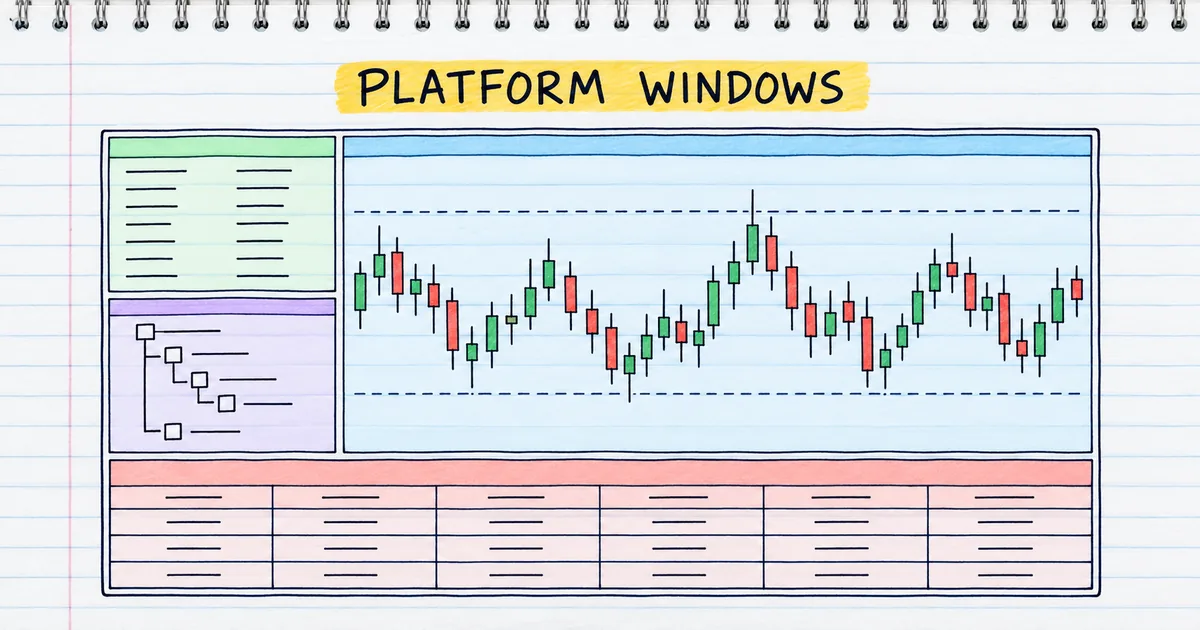
Layout and shortcuts follow the MetaTrader 5 user interface help and the official list of hot keys.
| Window | Shortcut | What it shows | What you use it for |
|---|---|---|---|
| Market Watch | Ctrl+M | Symbols with bid and ask prices, spread and daily change | Choosing what to watch, opening charts, checking the spread |
| Navigator | Ctrl+N | Your accounts, indicators, Expert Advisors and scripts | Switching account, adding an indicator to a chart |
| Toolbox | Ctrl+T | Open trades, account figures, history and logs | Watching positions and margin, reviewing past trades |
| Data Window | Ctrl+D | Exact prices and indicator values at the cursor | Reading one candle precisely |
| Chart window | None (it is the main area) | The price chart for one symbol, one tab per chart | Studying price over a chosen timeframe |
Press F9 from anywhere to open a new order window. A closed panel is only hidden: its shortcut or the View menu brings it back.
What does Market Watch show?
Market Watch is the list of symbols your broker offers, with live bid and ask prices for each one. The Market Watch help page lists the bid, the ask, the spread, the time of the last quote and the daily change in percent. You choose which columns appear from its right-click menu.
Key terms in Market Watch
- Symbol: the name of an instrument, such as EURUSD or XAUUSD.
- Bid: the price at which you can sell.
- Ask: the price at which you can buy. It is higher than the bid.
- Spread: ask minus bid, the main cost of most trades (see the spread, commission and swap lesson).
- Point: the smallest price step. On a five-digit currency pair such as EURUSD, one point is 0.00001 and 10 points make 1 pip.
To add a symbol, click the + below the list and type its name, or right-click and open Symbols. To open a chart, drag the symbol onto the chart area. Double-clicking a symbol opens a new order window instead.
Right-click a symbol and choose Specification to see your broker's conditions for it, such as the spread in points, contract size and swap.
What are the Market Watch tabs?
Market Watch has four tabs:
| Tab | What it shows |
|---|---|
| Symbols | The price list: bid, ask, spread and daily change |
| Details | Daily statistics for each symbol, such as the high and low |
| Trading | One-click buy and sell panels, which send orders instantly |
| Ticks | A tick chart of every recent price change for the selected symbol |
How do you read a line in Market Watch?
To read a Market Watch line, find the bid and the ask, then subtract the bid from the ask to get the spread. The spread tells you how far price must move in your favour before a new trade breaks even. Multiply it in pips by the pip value to see the cost in money.
| Symbol | Bid | Ask | Spread (points) |
|---|---|---|---|
| EURUSD (synthetic) | 1.08500 | 1.08512 | 12 |
- Spread in price: 1.08512 − 1.08500 = 0.00012.
- Spread in points: 0.00012 ÷ 0.00001 = 12 points.
- Spread in pips: 12 ÷ 10 = 1.2 pips.
- Cost on 0.10 lot: about $1 per pip, so 1.2 pips × $1 = about $1.20.
Pips and lots are explained in the lots, pips and pip value lesson.
What is the Navigator in MetaTrader 5?
The Navigator is the panel that lets you switch between your trading accounts and run indicators, Expert Advisors and scripts. It is laid out as a tree you can expand, and you use it to open one of your accounts or add an indicator to a chart. Press Ctrl+N to show or hide it.
- Indicator: a calculation drawn on a chart, such as a moving average.
- Expert Advisor: a program that can analyse prices and place trades automatically.
To add an indicator, drag it from the Navigator onto a chart, as the MetaTrader 5 indicators help shows.
How do charts, timeframes and the Data Window work?
A chart shows the price history of one symbol, and the timeframe sets how much time each bar or candle covers. MetaTrader 5 offers 21 timeframes, from one minute (M1) to one month (MN1). You switch between them with the timeframe buttons on the toolbar, and each chart sits in its own tab.
What is the Data Window?
The Data Window shows the exact values under your cursor: the date and time, the bar's prices and the value of any indicator on the chart. Press Ctrl+D to open it, then move the cursor across the chart.
What does the Toolbox show?
The Toolbox is the panel along the bottom of the screen that shows your open trades, your account figures and your history. Its Trade tab lists open positions and the account line. The History tab lists closed trades. The Journal tab records what you and the platform did during the session.
| Tab | What it shows |
|---|---|
| Trade | Open positions, pending orders, balance, equity, margin, free margin and margin level |
| History | Closed trades, deposits and withdrawals |
| Journal | A log of platform and trading events in the current session |
How do you read balance, equity and margin level in MT5?
Balance is your money before open trades are counted, equity adds the profit or loss on open trades, and margin level is equity divided by margin, times 100. Free margin is equity minus the margin your open positions use. All five figures sit on the account line of the Trade tab.
These definitions follow the MetaTrader 5 help on executing trades:
- Balance: money in the account, not counting open positions.
- Equity: balance plus or minus the floating profit or loss on open positions.
- Margin: money set aside to cover open positions and pending orders.
- Free margin: equity − margin, the amount left to open new positions or absorb losses.
- Margin level: equity ÷ margin × 100, shown as a percentage.
Worked example: a synthetic $1,000 demo account
You buy 0.10 lot of EURUSD at the ask, 1.08512. The position is worth 10,000 euros × 1.08512 = $10,851.20. At an example leverage of 1:30, the margin is $10,851.20 ÷ 30 = $361.71. The price has not moved, so the position shows the spread as a loss of $1.20.
| Figure | Calculation | Value |
|---|---|---|
| Balance | Before open trades | $1,000.00 |
| Equity | $1,000.00 − $1.20 | $998.80 |
| Margin | $10,851.20 ÷ 30 | $361.71 |
| Free margin | $998.80 − $361.71 | $637.09 |
| Margin level | $998.80 ÷ $361.71 × 100 | 276.1% |
MT5 shows the $1.
When price moves against the position, equity, free margin and margin level all fall; when it moves in your favour, all three rise. Margin is explained in the leverage and margin lesson, and the margin calculator runs the sum for other sizes.
What is one-click trading in MetaTrader 5?
One-click trading is a small panel on the chart that sends buy or sell market orders instantly, without the order window. You turn it on from the chart's right-click menu. The one-click trading help explains that the platform asks you to accept its terms the first time you use it.
It skips the confirmation step, so it is fastest once you know the normal order window from the place your first trade lesson.
How do you avoid common MetaTrader 5 beginner mistakes?
You avoid the common MetaTrader 5 beginner mistakes by checking which account is active, opening charts by dragging symbols, and reading equity rather than balance. The usual slips are trading on the wrong account, sending an order by accident and misreading the account figures. A quick look at the screen before each action prevents all three.
| Mistake | The fix |
|---|---|
| Trading live when you meant demo | Check the account in the Navigator before each session |
| Opening an order window by double-clicking a symbol | Drag the symbol to the chart area to open a chart |
| An instant order from one-click trading | Turn it on once you know the normal order window |
| Treating balance as your real position | Watch equity and free margin, which include open trades |
Position sizing and limiting losses are covered in Module 5, Risk Management. Chart templates and Depth of Market come in a later module.
Try it on demo
Log in to a demo account in MetaTrader 5. Add EURUSD and XAUUSD to Market Watch, turn on the Spread column, and drag each symbol onto the chart area. Then press Ctrl+M, Ctrl+N, Ctrl+T and Ctrl+D one at a time to hide and show each window, and find your margin level on the Trade tab.
Quick check
- Which window lists symbols with their bid and ask prices?
- EURUSD shows bid 1.08500 and ask 1.08512. The spread is
- Where do you see your balance, equity and free margin?
- Equity is $998.80 and margin is $361.71. The margin level is about
- The Toolbox has disappeared from your screen. What do you do?
Frequently asked questions
How do I get Market Watch or the Navigator back in MT5?
Press Ctrl+M for Market Watch or Ctrl+N for the Navigator, or open either one from the View menu. A window that disappears has only been closed, not removed, so you never need to reinstall the platform.
Why can I not see some symbols in Market Watch?
Market Watch shows only the symbols chosen for display. Add more with the + below the list or the Symbols window. If a symbol is not listed at all, your account does not offer it.
What is the difference between balance and equity in MetaTrader 5?
Balance is the money in your account without open trades. Equity is the balance plus or minus the profit or loss on open trades, so the two are equal only when no positions are open.
Sources
- MetaQuotes, MetaTrader 5 Help: User Interface, accessed 19 October 2026: the main windows are Market Watch, Navigator, Toolbox, Data Window and charts; the Navigator switches between accounts and runs trading robots and indicators; every chart can display 21 timeframes from M1 to MN1. https://www.metatrader5.com/en/terminal/help/startworking/interface
- MetaQuotes, MetaTrader 5 Help: Hot Keys, accessed 19 October 2026: Ctrl+M opens or closes Market Watch, Ctrl+N the Navigator, Ctrl+T the Toolbox, Ctrl+D the Data Window, and F9 opens the new order window. https://www.metatrader5.com/en/terminal/help/start_advanced/hotkeys
- MetaQuotes, MetaTrader 5 Help: Market Watch, accessed 19 October 2026: Market Watch shows bid, ask, spread, quote time and daily change; it has Symbols, Details, Trading (one-click panels) and Ticks (tick chart) tabs; symbols are added with the + button or the Symbols window; dragging a symbol to the chart area opens a chart and double-clicking opens a new order window; Specification shows the spread in points and other contract conditions. https://www.metatrader5.com/en/terminal/help/trading/market_watch
- MetaQuotes, MetaTrader 5 Help: Indicators, accessed 19 October 2026: the most convenient way to apply an indicator is to drag it from the Navigator window onto the chart. https://www.metatrader5.com/en/terminal/help/charts_analysis/indicators
- MetaQuotes, MetaTrader 5 Help: Executing Trades, accessed 19 October 2026: definitions of balance, equity, margin, free margin (equity − margin) and margin level (equity ÷ margin × 100), and the History tab of the Toolbox. https://www.metatrader5.com/en/terminal/help/trading/performing_deals
- MetaQuotes, MetaTrader 5 Help: One Click Trading, accessed 19 October 2026: the panel sends buy or sell market orders instantly, is turned on from the chart context menu, and asks you to accept terms on first use. https://www.metatrader5.com/en/terminal/help/trading/one_click_trading
- MetaQuotes, MetaTrader 5 Help: Platform Logs, accessed 19 October 2026: the Journal records trader and platform actions for the current session. https://www.metatrader5.com/en/terminal/help/start_advanced/journal
Practise what you learned
Open an account to use MetaTrader 5. Start on a demo account before risking real money.
Open Account