
How to Install MetaTrader 5 and Log In: Desktop, Mobile and Web
To install MetaTrader 5, download it from the official MetaQuotes site or an app store, run the installer, then log in with your login, password and server name. The web terminal needs no install, and a demo account lets you practise with virtual money first.
Module 3 · Lesson 1 of 7
What you'll learn
- How to install MetaTrader 5 on Windows, macOS, iPhone and Android, or use it in a browser.
- How to open a demo account and log in to it.
- What the login, password, server and investor password are.
- How to fix the most common login errors and keep your details safe.
This is the first lesson in MetaTrader 5 Basics.
How do you install MetaTrader 5?
To install MetaTrader 5, download the installer for your device from the official MetaQuotes download page or your phone's app store, run it, and follow the setup steps. In a browser you install nothing at all. The whole setup takes a few minutes, and the platform is free to download.
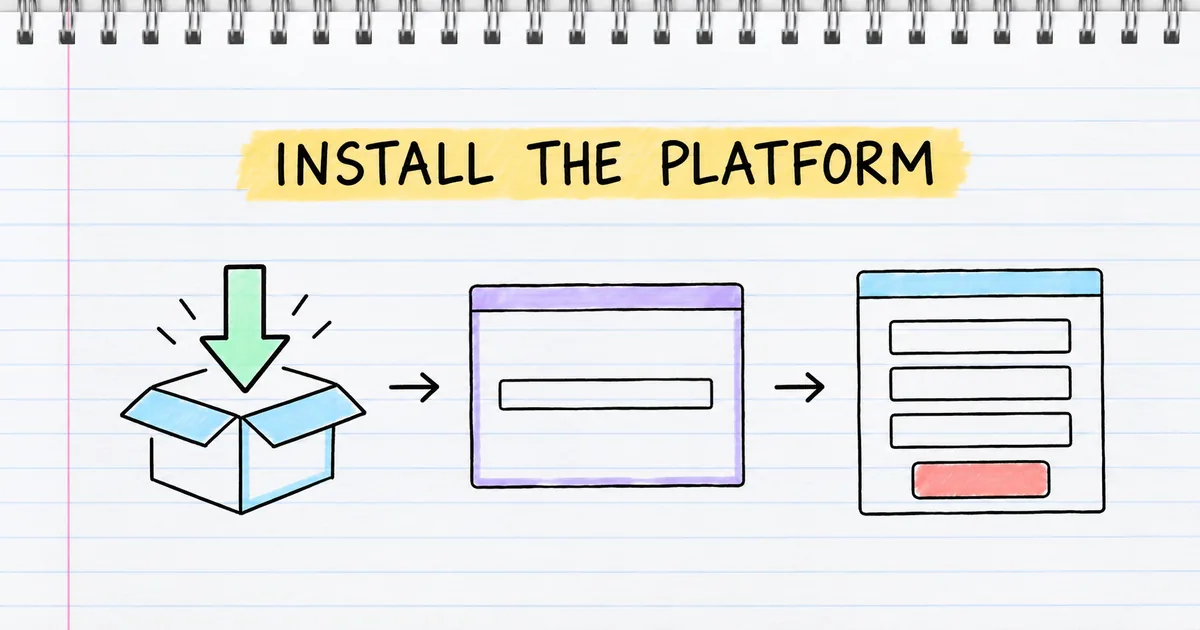
MetaTrader 5 (MT5) is trading software made by MetaQuotes, which is not a broker: your account is held with a broker. The official download page lists versions for Windows, macOS, iPhone and iPad, Android, and a web terminal.
Install on a Windows computer
MetaQuotes lists Windows 10 and 11 as the supported systems in its installation guide.
- Open the official download page and choose the Windows version.
- Run the file. Read the licence agreement and click Next only if you accept it.
- Wait while the installer downloads the rest of the platform.
- Click Finish, then open the platform from the desktop shortcut.
Install on a Mac
MetaQuotes provides a special installer for macOS. It needs macOS Catalina (10.15.7) or later and works on Apple processors from M1 onwards.
- Download the macOS version from the official download page and open the file.
- Follow the on-screen steps.
- Agree to install the extra components. These set up Wine, which lets the Windows program run on a Mac.
Install on a phone
- Open the App Store on an iPhone or iPad, or Google Play on Android. Some Android phones use Huawei AppGallery instead.
- Search for MetaTrader 5 and check the publisher is MetaQuotes.
- Open the app. It offers to open a demo account or log in to an existing one.
Use the web terminal
The web terminal runs in Chrome, Safari, Firefox and other browsers, with nothing to install. MetaQuotes notes that each broker's web terminal sits on that broker's own website address, so check the address before you type a password.
Which version of MetaTrader 5 should you use?
The desktop version suits learning and analysis on a bigger screen, the mobile app suits checking positions on the go, and the web terminal suits a computer where you cannot install software. They are the same platform, so one account works on all of them.
Phone-first setups for each market are covered in the country guides.
| Desktop | Web terminal | Mobile app | |
|---|---|---|---|
| Runs on | Windows 10/11, macOS (Catalina or later) | Any modern browser | iPhone, iPad, Android |
| Where to get it | MetaQuotes download page or your broker | Your broker's website | App Store, Google Play or AppGallery |
| Install needed | Yes | No | Yes |
| Screen space | Large, many charts at once | Large, inside a browser tab | Small, one chart at a time |
| Good for | Learning, analysis, practice | Shared or work computers | Checking positions away from a desk |
What are the login, password and server?
Your login, password and server are the three details MetaTrader 5 needs to connect you to an account: the login is the account number, the password unlocks it, and the server is the broker's computer that holds the account. You get all three when you open an account.
Login, password and server
- Login: your account number. It is a number, not your email address.
- Password: the master password, which lets you trade. MetaQuotes' guide to connecting says logging in with the master password gives full rights to the account.
- Server: the name of the trade server your account lives on. Use the server name your broker gives you, exactly as written. A demo account and a live account usually sit on different servers.
Investor password
The investor password is a read-only password. It lets someone see the account status and analyse prices, but trading is disabled. Never share the master password.
How do you open a MetaTrader 5 demo account?
To open a demo account on the desktop platform, choose Open an Account from the File menu, pick a server, choose a demo account, fill in the form and click Next. The platform then shows your new login, master password and investor password. A demo account uses virtual money at live prices.
How to practise on it, and when to move to live, is covered in forex demo account.
The steps, from MetaQuotes' account opening guide:
- In the File menu, click Open an Account.
- Search for your broker by name and select its server. Click Next.
- Choose a demo account.
- Enter your name, email and phone number.
- Set the account type, deposit and leverage, and whether to use hedging (see netting vs hedging).
- Accept the broker's terms and click Next. Write down the login, master password and investor password shown.
The final screen also shows a QR code for connecting the mobile app to the new account.
Worked example: choosing a demo deposit
The demo form asks you to choose a deposit. The money is virtual, but the size you pick changes what you learn.
Say you pick a $10,000 virtual deposit. A practice trade loses $50.
- On $10,000, a $50 loss is 0.5% of the account.
- On a $500 account, the same $50 loss is 10% of the account.
A demo balance close to what you would really use makes each loss feel its true size. On a CFD broker's MT5 account, demo or live, each position is a contract for difference (CFD): it settles the price change in cash, and nothing is delivered.
How do you log in to MetaTrader 5?
To log in to MetaTrader 5, choose to log in to an existing trade account, then enter your login, password and server exactly as your broker gave them. The steps differ slightly on desktop, phone and web, but the three details are the same everywhere.
| Where | Steps |
|---|---|
| Desktop | Click Login to Trade Account in the File menu. Enter the login, password and server. Tick Save password only on a computer that is yours alone. |
| Phone | Open the accounts page and tap to add an account. Search for your broker's server by name, enter the login and password, then tap Sign In. Or tap Sign In with QR Code and scan the code from the desktop platform. |
| Web | Open the web terminal at your broker's own address and enter the same three details. |
The steps follow MetaQuotes' desktop and iPhone connection guides. On your first sign-in, or from time to time, the platform may ask you to change the master password. A forced change also cancels the old investor password.
Why won't MetaTrader 5 log in?
MetaTrader 5 usually fails to log in because the login, password or server does not match the account, the demo has expired, or your internet connection has dropped. The status bar at the bottom of the desktop platform shows whether you are connected to the server.
| Problem | What to check |
|---|---|
| Cannot connect to a new account | Check that the login, password and server are typed exactly as given, and that you picked your broker's server, not one with a similar name |
| Cannot connect to any account | Check that your internet connection works, then search for the server again |
| Invalid account on an old demo | The demo has expired and been deleted, so open a new demo account |
| Logged in, but cannot trade | You used the investor password, so log in with the master password |
| Forgotten password | Contact your broker. In the mobile app, Forgot your password? opens your broker's contact details |
MetaQuotes' account management guide explains that an expired demo returns the Invalid account error, and the platform may open a new demo on the same server.
How do you keep your MetaTrader 5 login secure?
To keep your MetaTrader 5 login secure, install the platform only from an official source, type passwords only into your broker's own web address, and keep the master password to yourself. The master password gives full trading rights on the account, so treat it like a bank PIN. Share the investor password when someone only needs to view the account.
Keep these habits:
- Download only from the official MetaQuotes site, an official app store, or your broker.
- Check the web address before typing a password into a web terminal.
- Keep your login and passwords somewhere safe outside the platform.
- Give out the investor password, never the master password, for read-only access.
- Check whether you are on a demo or live account before you place any trade.
Try it on demo
Install MetaTrader 5 and open a demo account with a realistic deposit. Write down the login, passwords and server, then close the platform and log in again using only your notes. Check the status bar shows a connection and prices are moving. Next, learn your way around the screen in the MetaTrader 5 interface.
Quick check
- Which three details do you need to log in to a MetaTrader 5 account?
- Your login and password are correct, but you cannot connect. What should you check first?
- What does the investor password let you do?
- What is the money in a demo account?
- Where should you download MetaTrader 5 from?
Frequently asked questions
Is MetaTrader 5 free?
Yes. MetaQuotes offers MetaTrader 5 free to download on Windows, macOS, iPhone and Android, and the web terminal is free to use. Your costs come from trading, such as spreads and commission, which are set by your broker.
Can I use MetaTrader 5 without a broker?
You can install it and open a demo account without depositing money, but you still choose a broker's demo server. MetaQuotes makes the software and does not offer trading accounts itself, so a live account always comes from a broker.
Can I use the same account on my phone and computer?
Yes. Log in with the same login, password and server on each device. The account and its positions live on the broker's server, so you see the same balance and open trades everywhere.
What is the difference between a demo and a live account?
A demo account trades with virtual money that cannot be withdrawn, while a live account uses your real money. Both show live prices on the same platform, so check which one you are logged in to before you trade.
Sources
- MetaQuotes, Download MetaTrader 5 (accessed 27 October 2026): the platform is free and available for Windows, macOS, Linux, iPhone and iPad, Android (Google Play and Huawei AppGallery) and as a web terminal; MetaQuotes is a software company, not a broker. https://www.metatrader5.com/en/download
- MetaQuotes, MetaTrader 5 Help: Platform installation (accessed 27 October 2026): Windows 10/11 support and the installation wizard steps. https://www.metatrader5.com/en/terminal/help/start_advanced/installation
- MetaQuotes, MetaTrader 5 Help: Install the platform on macOS (accessed 27 October 2026): minimum macOS Catalina (10.15.7), Apple processor support from M1, and the Wine compatibility layer set up by the installer. https://www.metatrader5.com/en/terminal/help/start_advanced/install_mac
- MetaQuotes, MetaTrader 5 Help: Open an Account (accessed 27 October 2026): demo account steps and form fields, virtual money only, the login, master and investor passwords issued, and the QR code for connecting the mobile app. https://www.metatrader5.com/en/terminal/help/startworking/acc_open
- MetaQuotes, MetaTrader 5 Help: Connect to an Account (accessed 27 October 2026): the Login to Trade Account window, the login, password and server fields, master versus investor access, the Save password option, and the forced master password change on first sign-in that invalidates the investor password. https://www.metatrader5.com/en/terminal/help/startworking/authorization
- MetaQuotes, MetaTrader 5 iPhone/iPad Help: Account Connection (accessed 27 October 2026): searching for a broker's server by name, the Sign In and Sign In with QR Code options, and Forgot your password? opening the broker's contact details. https://www.metatrader5.com/en/mobile-trading/iphone/help/settings_accounts/account_connect
- MetaQuotes, MetaTrader 5 Help: Platform Interface (accessed 27 October 2026): the status bar shows the server connection indication. https://www.metatrader5.com/en/terminal/help/startworking/interface
- MetaQuotes, MetaTrader 5 Help: Manage Trading Accounts (accessed 27 October 2026): an expired demo account returns the Invalid account error and is removed from the Navigator. https://www.metatrader5.com/en/terminal/help/start_advanced/account_manage
- MetaQuotes, Web trading: How to connect (accessed 27 October 2026): the web terminal needs no installation, runs in common browsers, and each broker's web terminal sits on that broker's own domain. https://www.metatrader5.com/en/trading-platform/web-trading/how-to-connect
Practise what you learned
Open an account to use MetaTrader 5. Start on a demo account before risking real money.
Open Account