
How to Set a Price Alert in MT5 Mobile and Desktop
MT5 mobile price alerts are created in desktop MetaTrader 5 and arrive on your phone as push notifications through your MetaQuotes ID. MetaQuotes’ mobile help covers receiving them in the app, not creating them there, so use the Notification action on desktop; an alert never opens a trade.
Module 9 · Lesson 4 of 5
What you'll learn
- What an MT5 price alert is and what it does.
- How to set a price alert in MT5 mobile, step by step, using your MetaQuotes ID.
- How each field of the desktop Alert Editor works.
- How an alert differs from a push notification and a pending order.
This lesson is part of the MT5 Power User module. New to the platform? Start with how to use MetaTrader 5.
What is a price alert in MT5?
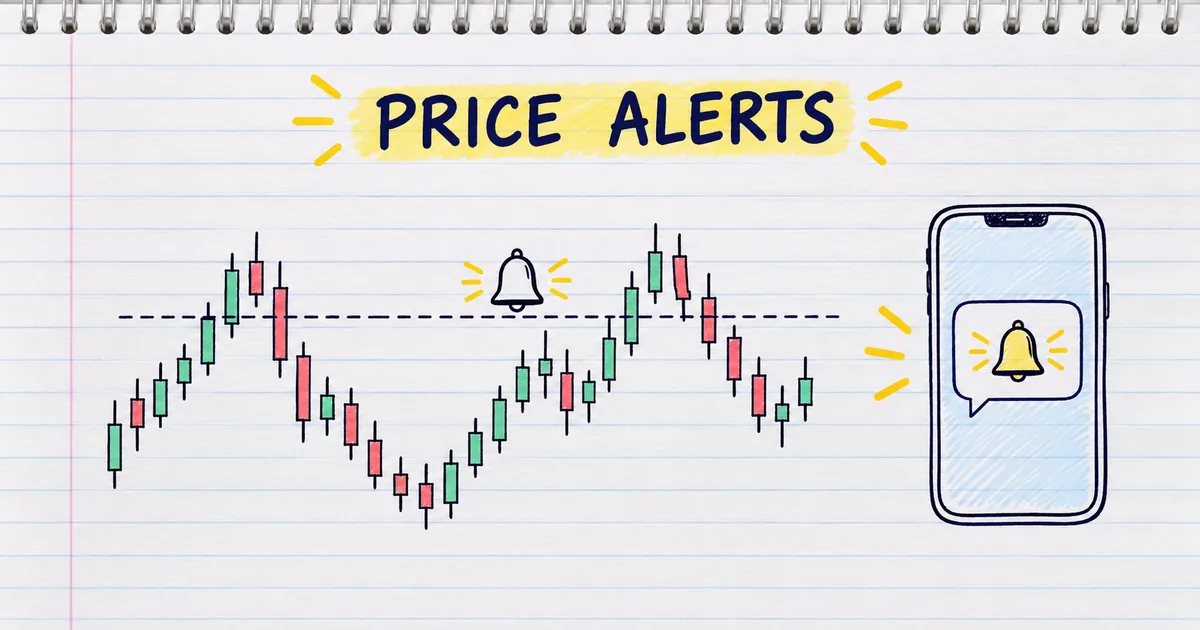
An MT5 price alert is a rule that watches one price for you and notifies you when the price crosses a level you chose. It can play a sound, send an email or send a push notification to your phone. It never opens, closes or changes a trade; you decide what to do next.
Key terms
- Bid: the price at which you can sell. Ask: the price at which you can buy.
- Last: the price of the most recent deal on that symbol.
- Push notification: a short text message sent over the internet to an app on your phone.
- MetaQuotes ID: the unique code given to your MT5 mobile app when you install it. It works like a phone number for push notifications.
Can you set a price alert in the MT5 mobile app?
MetaQuotes' official help has you create price alerts in the desktop platform, not inside the MT5 mobile app, and the desktop platform sends them to the app as push notifications. The iPhone and Android help pages explain how to receive these alerts in the Messages section and describe no way to create one there.
The Android help states that pushes reach your phone even when the MT5 app is closed, as long as you have mobile internet.
How do you set a price alert in MT5 mobile?
To set a price alert in MT5 mobile, copy your MetaQuotes ID from the app, enter it in the desktop platform's notification settings, then create an alert with the Notification action. The desktop platform checks the price and sends the alert to your phone. You link the phone once; after that, repeat steps 5 and 6 for each new alert.
| Step | Where | What to do |
|---|---|---|
| 1 | iPhone | Allow notifications: iOS Settings, Notifications, MetaTrader 5, Allow Notifications |
| 2 | Phone | Open Messages. On iPhone your MetaQuotes ID is at the bottom of the screen; on Android, tap MQID on the top panel |
| 3 | Desktop | Tools, Options, Notifications tab. Tick Enable Push Notifications and paste the ID (up to 4 IDs, separated by commas) |
| 4 | Desktop | Press Test and check that a test message arrives on your phone |
| 5 | Desktop | Toolbox (Ctrl+T), Alerts tab. Right-click and choose Create, or press Insert |
| 6 | Desktop | Set Action to Notification, then choose the symbol, condition and value, and click OK |
The iPhone steps come from the iPhone messages help; the desktop steps come from the notification settings help. New to the Toolbox? See the MetaTrader 5 interface.
How do you set a price alert on MT5 desktop?
On MT5 desktop, open the Alerts tab in the Toolbox, right-click, choose Create, and fill in the Alert Editor. You pick a symbol, a condition such as Bid >, a trigger value and an action. Depending on the action, it sounds on your computer, sends an email or reaches your phone.
The Alert Editor fields, as set out in MetaQuotes' alerts guide:
| Field | What it does |
|---|---|
| Enable | Switches the alert on or off without deleting it |
| Action | Sound, File (runs a program), Email or Notification (push to your phone) |
| Symbol | The instrument whose price is checked |
| Condition | Bid <, Bid >, Ask <, Ask >, Last <, Last >, Volume <, Volume >, or Time = |
| Value | The price, volume or time that triggers the alert |
| Source | The sound file, program, email template or push text (push text up to 255 characters) |
| Expiration | A local time after which the alert is deleted automatically |
| Timeout | The time between repeats |
| Maximum iterations | The most times the alert repeats |
How do you create an alert from the chart?
You can also right-click a chart, open the Trading menu and choose Alert. MetaQuotes' guide says the alert uses Bid > if you clicked above the current price and Bid < if below. Alerts show as red arrows on the right of the chart; drag an arrow to move its level. Chart alerts expire automatically based on the timeframe, so check the Expiration field. Open the alert in the Toolbox to switch its Action to Notification.
There is no "equal to" price condition: Bid > 1.09000 triggers when the bid goes above 1.09000. Write a clear Source text, such as "EURUSD above 1.09000: check plan".
Why does the desktop platform need to stay open?
Price alerts are checked and sent by the desktop platform on your computer, so they only work while it is running and connected. If the computer sleeps, goes offline or the platform is closed, nothing watches the level and no message is sent.
MetaQuotes' notification settings help describes a separate option, notifications from the trade server, that works without keeping the platform running. It covers orders, deals and balance operations, depends on your broker, and does not replace a price alert.
Some traders keep the platform on an always-on computer or a virtual server instead. MetaQuotes' virtual hosting migration help lists charts, Expert Advisors, indicators, signal settings and email settings among what is moved, and does not list Toolbox price alerts among them.
How does a price alert work in a worked example?
In this example, an alert on EURUSD fires when the bid rises above 1.09000, 35 pips above the current price. At 0.10 lot, those 35 pips are worth $35. The alert tells you the price arrived, and your plan decides the trade.
Synthetic setup:
- EURUSD bid is 1.08650. Your plan says 1.09000 is worth a fresh look.
- You create an alert: Symbol EURUSD, Condition Bid >, Value 1.09000, Action Notification.
- Distance: 1.09000 − 1.08650 = 0.00350, which is 35 pips.
- At 0.10 lot of EURUSD, one pip is worth about $1, so 35 pips is $35.
No trade exists, so the $35 is only the size of the move, not a gain or loss. Pip values are explained in lots, pips and pip value, and the pip value calculator works them out for other currency pairs.
What is the difference between an alert and a pending order?
An alert watches a price and notifies you, a push notification is one way that message is delivered, and a pending order is an instruction to trade at a set price. Only the pending order can open a position on its own.
| Desktop price alert | Push notification | Pending order | |
|---|---|---|---|
| What it is | A rule that checks a price | A message delivered to your phone | An order waiting at a price |
| Can it open a trade? | No | No | Yes, when the price is reached |
| Where it runs | Your desktop platform | Sent to the MT5 mobile app | Your broker's server |
| Needs your platform open? | Yes | It carries whatever the platform sends | No |
How to place them is covered in pending orders in MT5.
What should you check when an alert fires?
When an alert fires, open the chart and run your plan: confirm the price, reread your setup and complete your risk checklist before you trade. Price has reached your level, and news or the spread may have moved since you set the alert, so a short routine keeps every decision deliberate.
- Open the chart and confirm the price is really at your level, not a brief spike.
- Reread the plan you wrote when you set the alert.
- Run your pre-trade risk checklist: stop loss, position size, margin and news.
- If any check fails, wait or skip. If all pass, place the trade as planned.
- Delete or update the alert so it does not repeat.
How do you keep MT5 price alerts reliable?
Keep MT5 price alerts reliable by leaving the desktop platform running and connected, testing your MetaQuotes ID after any change, and limiting repeats. Then run your plan each time an alert arrives, so the alert speeds up the decision and the risk checks you planned still happen.
- Press Test after any MetaQuotes ID change; a wrong ID sends nothing.
- Set Maximum iterations low, or to 1, so each level sends one clear message rather than a stream.
- Bid and Ask differ by the spread, so a Bid alert and an Ask alert at the same value fire at different moments. Match the condition to your trade: Ask for a buy, Bid for a sell.
- After an internet drop, recheck the live price before acting on an alert that arrived late.
Try it on demo
On a demo account, link your MetaQuotes ID and press Test. Then create an EURUSD alert with the Notification action, about 20 pips above the current bid, with Maximum iterations set to 1. When it arrives, run the five-step routine above and note what you would decide.
Quick check
- Where do you create a price alert that reaches the MT5 mobile app?
- What links the desktop platform to your phone?
- Your alert fires at 1.09000. What has MT5 done?
- Bid is 1.08650 and your alert is at 1.09000. At 0.10 lot of EURUSD the distance is worth
- Your computer is switched off. Will your desktop price alert reach your phone?
Frequently asked questions
Does MT5 mobile have price alerts?
The MT5 mobile app receives price alerts as push notifications, but the official help describes creating them in the desktop platform. They appear in the app's Messages section.
Why is my MT5 alert not working?
Usually the desktop platform is closed or offline, the MetaQuotes ID is wrong, or the alert is disabled or expired. Press Test in the Notifications settings and check the alert is enabled.
Do MT5 alerts work when my computer is off?
No. Price alerts are checked by the desktop platform, so it must be running and connected. Trade server notifications, where your broker offers them, cover orders and deals, not price alerts.
Can an MT5 alert open a trade?
No. An alert only notifies you by sound, email, push notification or by running a file. Only a pending order can open a trade automatically at a price.
Sources
- MetaQuotes, MetaTrader 5 Help: Executing Trades, section Alerts, accessed 19 October 2026: alerts are created in the Toolbox Alerts tab via the context menu or Insert; conditions Bid, Ask, Last, Volume and Time; actions Sound, File, Email and Notification; quick alerts from the chart Trading menu (Bid > above price, Bid < below), shown as red arrows that can be dragged, expiring by timeframe; push text up to 255 characters; lifetime, time between repeats and maximum repeats. https://www.metatrader5.com/en/terminal/help/trading/performing_deals#alert
- MetaQuotes, MetaTrader 5 Help: Platform Settings, section Notifications, accessed 19 October 2026: Enable Push Notifications with up to 4 MetaQuotes IDs and a Test button; notifications from the trade server do not require the platform to keep running and cover orders, deals and balance operations, depending on the broker. https://www.metatrader5.com/en/terminal/help/startworking/settings#notifications
- MetaQuotes, MetaTrader 5 Help: Virtual Hosting, Migration, accessed 19 October 2026: migration copies charts, running Expert Advisors and indicators, signal copying parameters and email settings, depending on the mode; the page does not list Toolbox price alerts. https://www.metatrader5.com/en/terminal/help/virtual_hosting/virtual_hosting_migration
- MetaQuotes, MetaTrader 5 Android Help: Messages, accessed 19 October 2026: desktop pushes come from alerts in the Toolbox Alerts tab; enable them in Tools, Options, Notifications; find the MetaQuotes ID by tapping MQID; pushes arrive even when the app is not running. https://www.metatrader5.com/en/mobile-trading/android/help/messages
- MetaQuotes, MetaTrader 5 iPhone Help: Messages settings, accessed 19 October 2026: the MetaQuotes ID is shown at the bottom of the Messages screen and requires Allow Notifications for the app in iOS settings; alerts are created in the desktop platform. https://www.metatrader5.com/en/mobile-trading/iphone/help/settings_messages
Practise what you learned
Open an account to use MetaTrader 5. Start on a demo account before risking real money.
Open Account